How to Use Your Digital Journal or Planner (Step‑by‑Step)
How to Use Your Digital Journal or Planner (Step‑by‑Step)
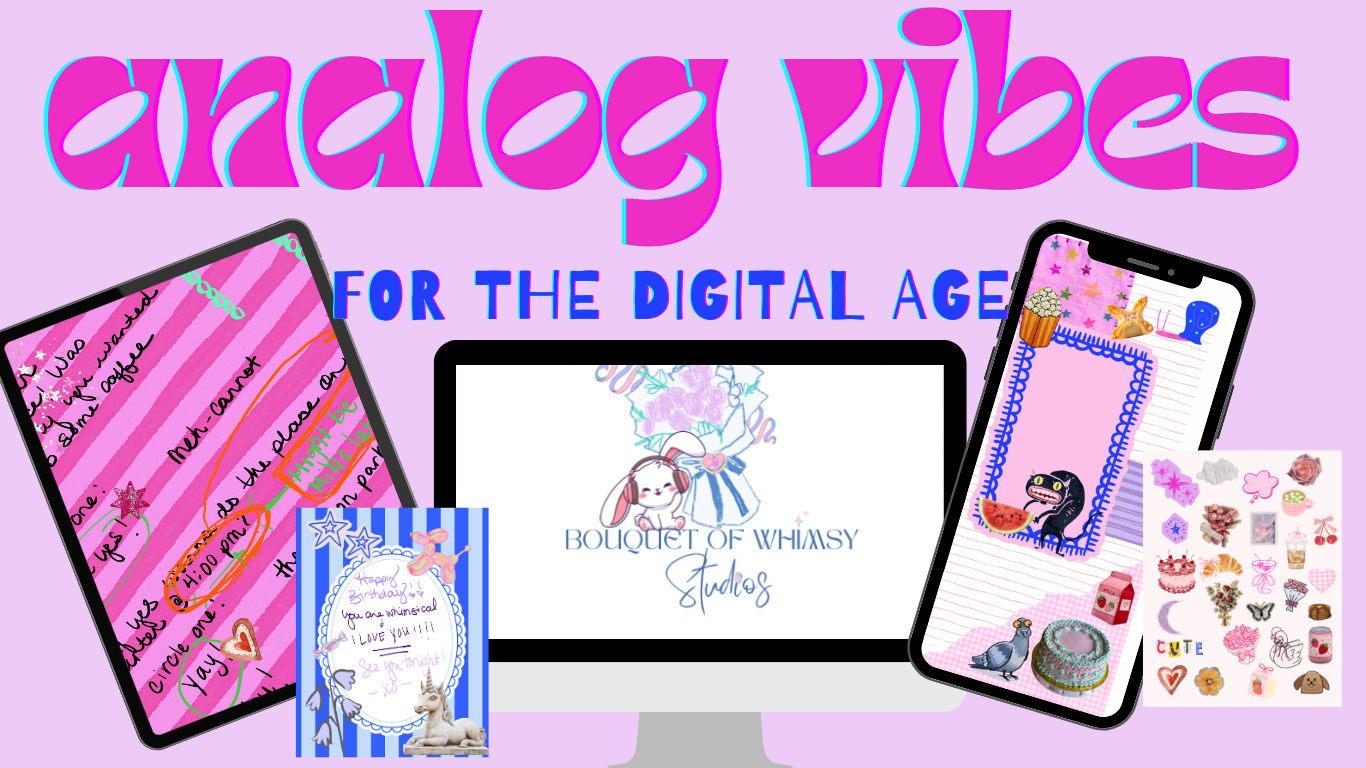
Digital journals and planners are one of the easiest ways to romanticize your daily routines — especially when paired with an iPad and Apple Pencil. This guide walks you through exactly how to use this digital product in GoodNotes and Notability, even if you’ve never used digital stationery before.
No tech stress. No overwhelm. Just cozy, analog‑feeling organization — but digital ✨
What You’ll Need For Best Digital ONLY use.
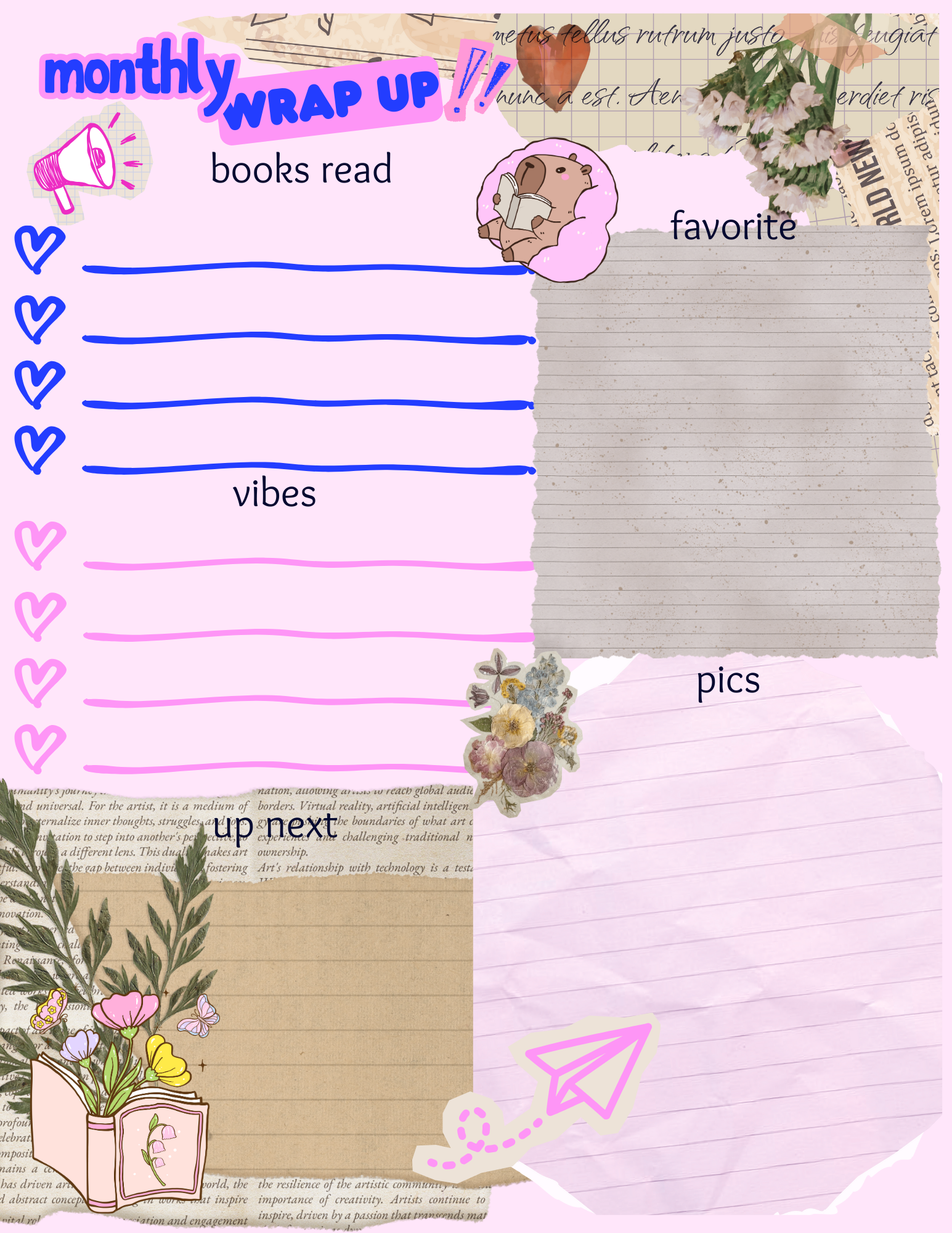
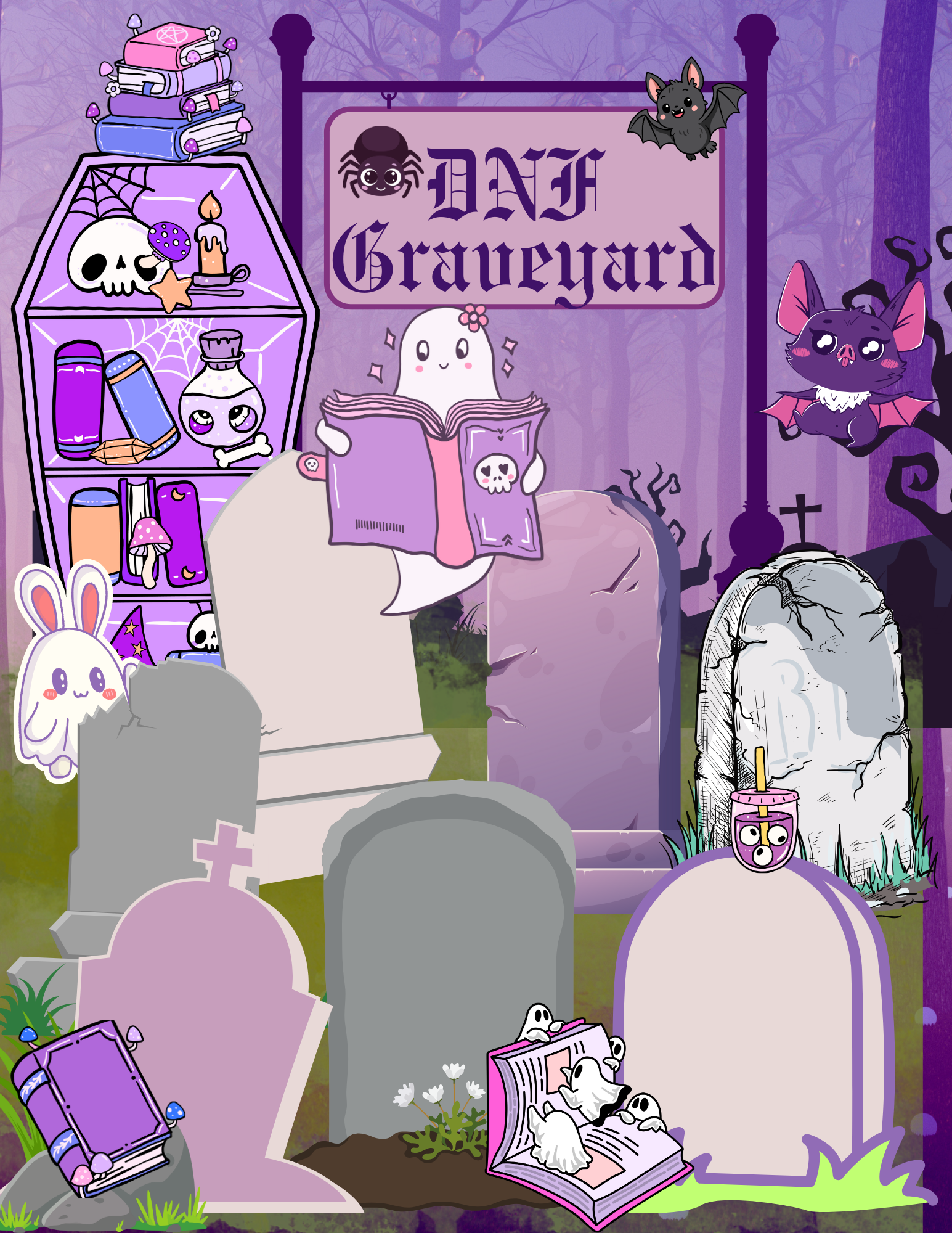
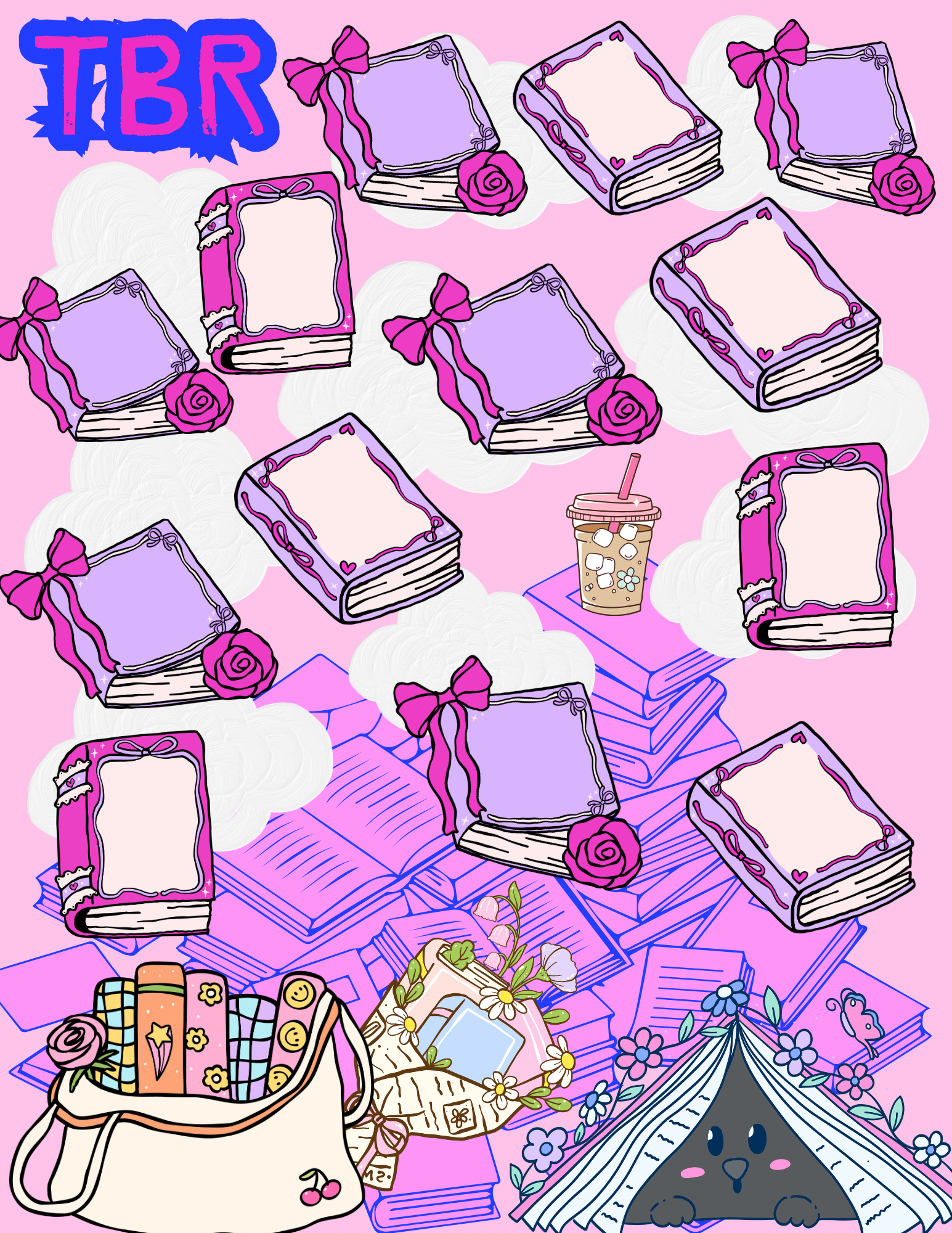
If you want to use this whimsical product digitally ONLY (which means, that you have no wish to print it) you may find the following helpful if this is your first rodeo exploring digilog items. Digilog is a term we use to use analog methods (physical handwriting) on a digital medium (in this case, an ipad or tablet instead of paper or a physical journal/ planner). So, with that being said- before you start, make sure you have:
An iPad (works best with iPadOS)
An Apple Pencil (highly recommended for the full experience)
A note‑taking app:
GoodNotes (popular for planners & journals)
Notability (great for handwriting + notes)
Your downloaded digital journal or planner file
💡 This product is a digital download — nothing physical will be shipped.
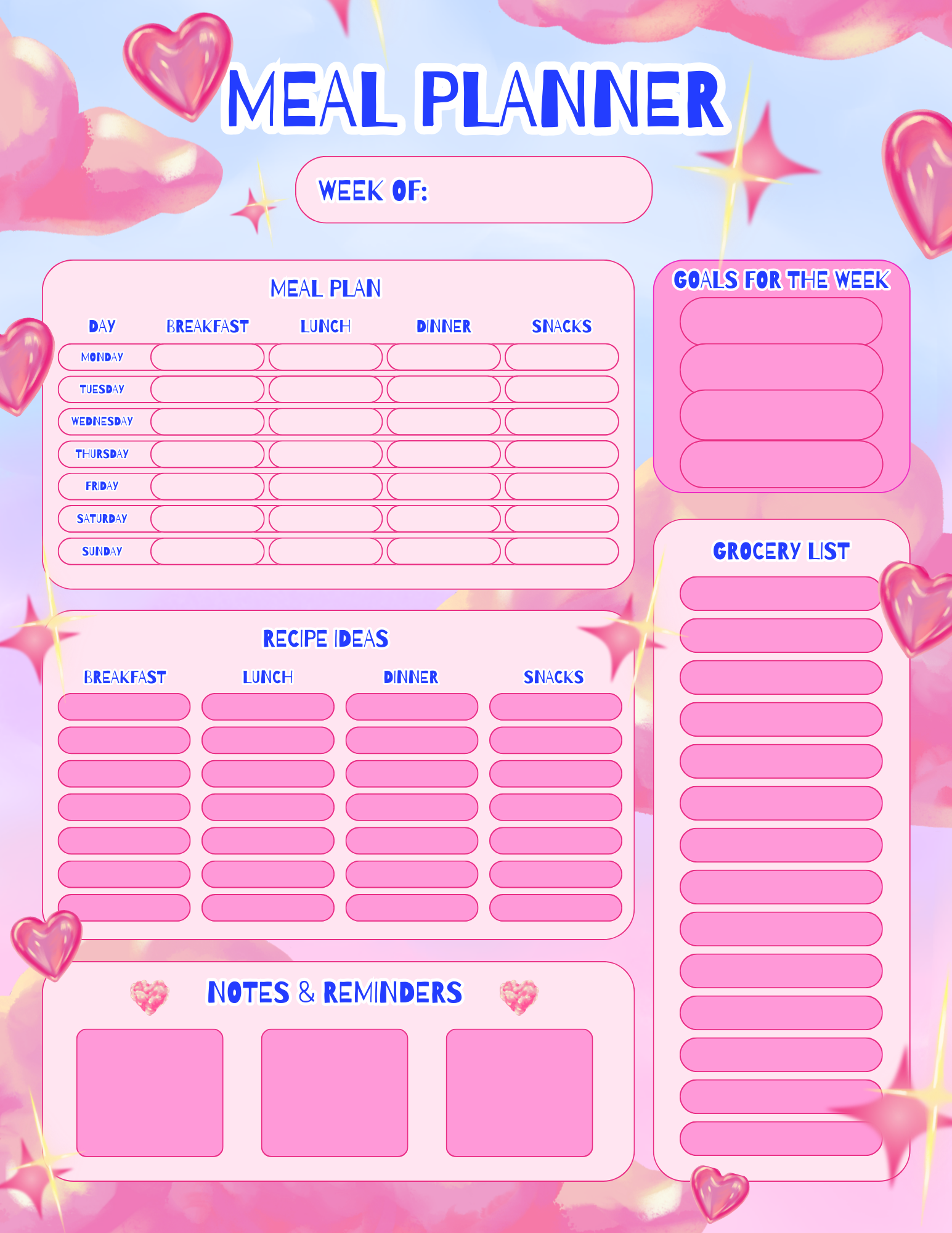
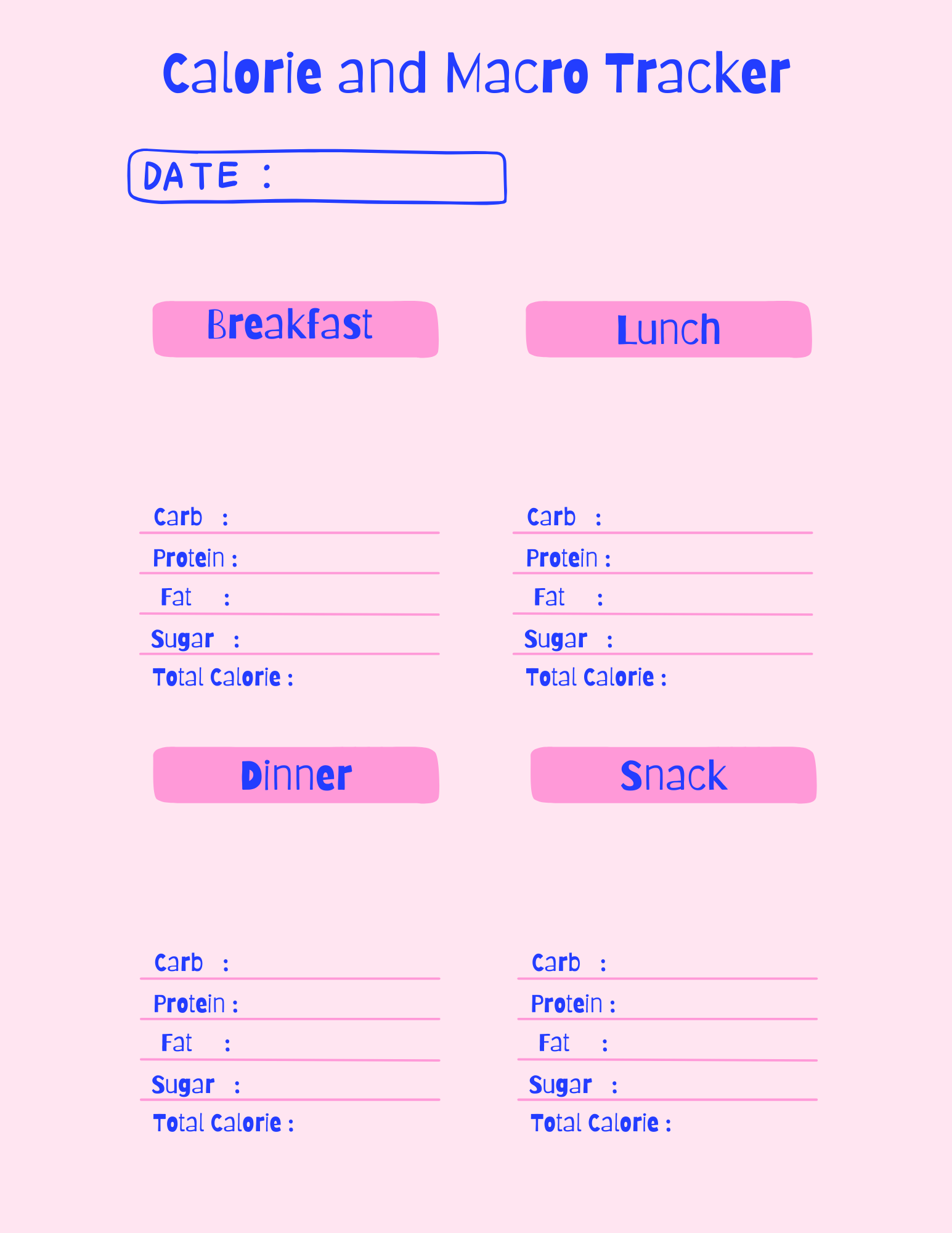
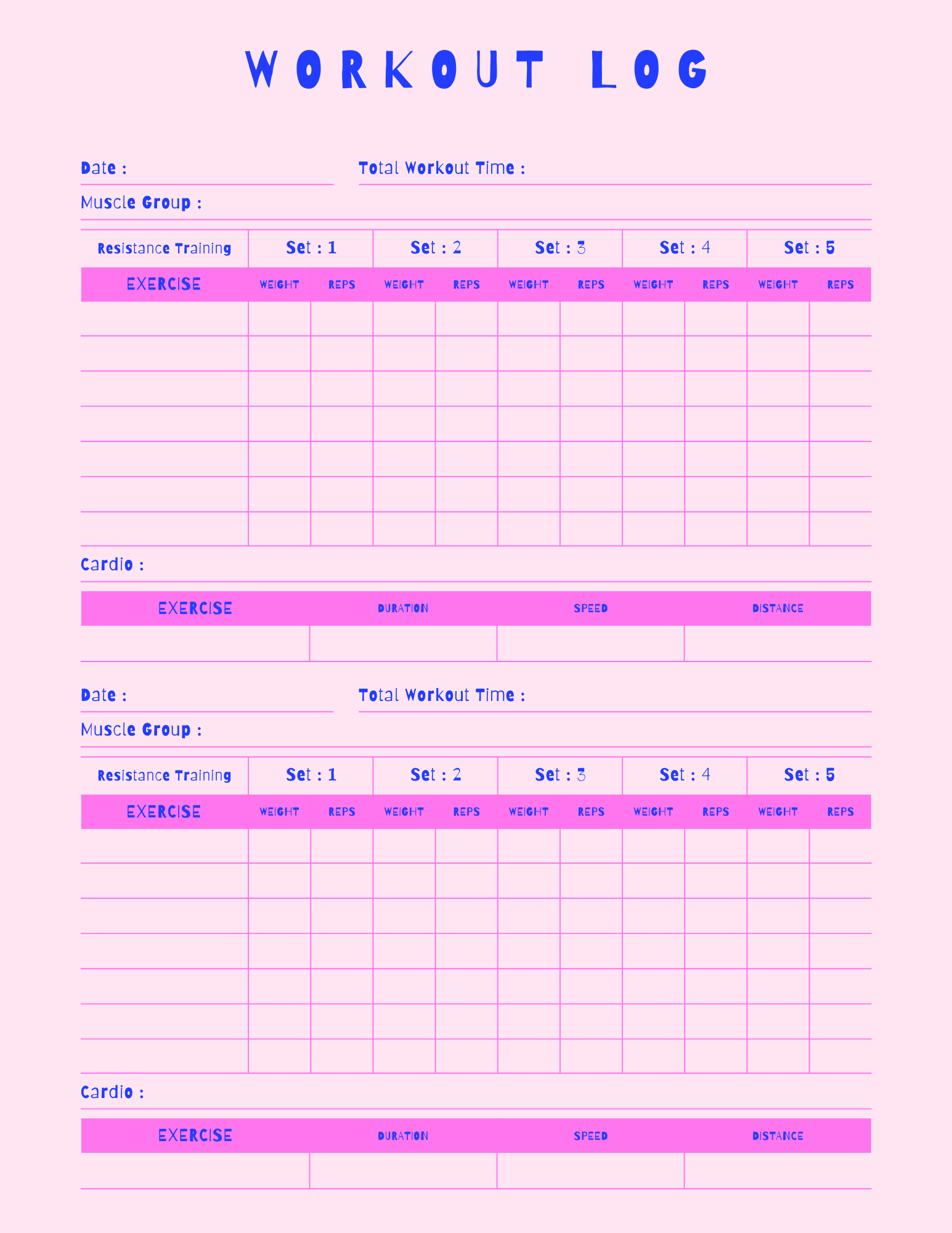
How to Download Your Digital File
After purchase, download the file to your device.
Save it to Files, iCloud, or directly to your iPad.
Do not unzip or edit the file unless instructed — it’s ready to use as‑is.
How to Use This Digital Product in GoodNotes
GoodNotes is ideal for digital planners, journals, and printable stationery.
Step 1: Open GoodNotes
Launch the GoodNotes app on your iPad.
Step 2: Import the File
Tap + → Import
Select your downloaded digital journal or planner file
Step 3: Start Writing
Use your Apple Pencil to write naturally on the pages
Choose pen styles, highlighters, or colors to personalize your pages
Step 4: Customize Your Experience
Duplicate pages as needed
Add text boxes, stickers, or photos
Zoom in for neat handwriting
✨ Why GoodNotes works so well: smooth handwriting, easy page duplication, and a very paper‑like feel.
How to Use This Digital Product in Notability
Notability is great if you love combining handwriting with quick notes.
Step 1: Open Notability
Launch the Notability app on your iPad
Step 2: Import the File
Tap Import or +
Choose your digital journal or planner file
Step 3: Write & Annotate
Write directly on the pages with your Apple Pencil
Use highlights, stickers, or text tools as needed
Step 4: Organize Your Notes
Rename your journal
Store it in a dedicated folder or subject
✨ Why Notability works well: simple interface, fast performance, and flexible note tools.
Best Way to Use This Product
For the most magical and whimsical experience:
Use an iPad + Apple Pencil for a true analog‑meets‑digital feel
Treat it like a real notebook — daily check‑ins work best
Duplicate pages instead of re‑downloading
Make it yours: color‑code, decorate, and experiment
To keep the colors consistent with the orginal, do not flatten the pdf when downloading or saving to your device/ app.
This product is designed to feel cozy, personal, and low‑pressure — not rigid or overwhelming.
Important Notes
This product is for personal use only
Colors may vary slightly depending on screen settings
Works best on tablets — desktop use is not recommended

Final Thoughts
Digital journals and planners are meant to support your life, not complicate it. Once you get comfortable, this becomes a simple daily ritual — like opening a favorite notebook, but always with you.
If you have questions or want tips for getting started, you’re always welcome to explore more guides or reach out 💐
Happy digiloging! ✨